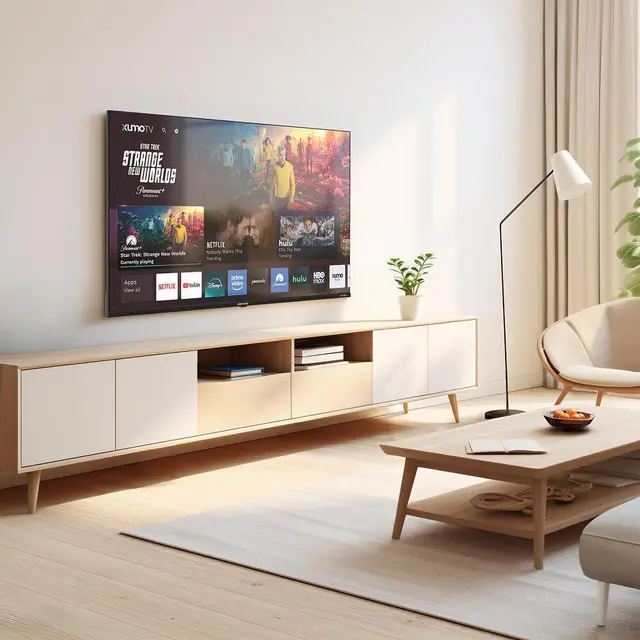
Which Fire TV Stick should you use?
| Model | Best for | Notes |
|---|---|---|
| Fire TV Stick 4K Max | 4K TVs, the smoothest experience | Most memory, fastest processor, Wi-Fi 6E |
| Fire TV Stick 4K | 4K TVs on a budget | Good all-rounder |
| Fire TV Stick (HD) and Lite | HD TVs, bedroom TVs | No 4K output, and slower with large channel lists |
| Fire TV Cube | Living rooms that want hands-free Alexa | Has an Ethernet port, the most stable option |
Check the operating system before you buy. Most Fire TV devices run Fire OS, which is based on Android and can install IPTV player apps. Amazon’s newer devices running Vega OS can only install apps from the Amazon Appstore, so many IPTV players will not be available on them. You can check yours in Settings > My Fire TV > About.
Best IPTV apps for Firestick
- IPTV Smarters Pro: free, simple and supports Xtream Codes and M3U. The best starting point.
- TiviMate: the most polished TV-guide layout, with recording and catch-up support in its premium tier.
- Purple Player and Televizo are lighter alternatives, useful on the basic Fire TV Stick.
Most of these are not in the UK Amazon Appstore. You install them with the free Downloader app. See Downloader codes for how that works safely.
Setting it up
The full walkthrough, from enabling developer options to signing in, is in how to install IPTV on a Firestick. In short:
- Install Downloader from the Amazon Appstore.
- Allow Downloader to install unknown apps in Settings > My Fire TV > Developer options.
- Download your chosen player from its official source.
- Open the player and enter your login details.
Keep your Fire TV Stick running smoothly
- Use the 4K Max or 4K model for large channel lists. The basic stick can feel sluggish loading big TV guides.
- Plug the stick into mains power with the supplied adapter, not the TV’s USB port, which often cannot supply enough power.
- Use an HDMI extender (usually in the box) so the stick is not behind the TV blocking its own Wi-Fi.
- Consider an Ethernet adapter if your Wi-Fi is patchy. It is the single biggest fix for buffering.
- Clear the app cache occasionally in Settings > Applications > Manage installed applications.
If something goes wrong, see IPTV not working on Firestick.